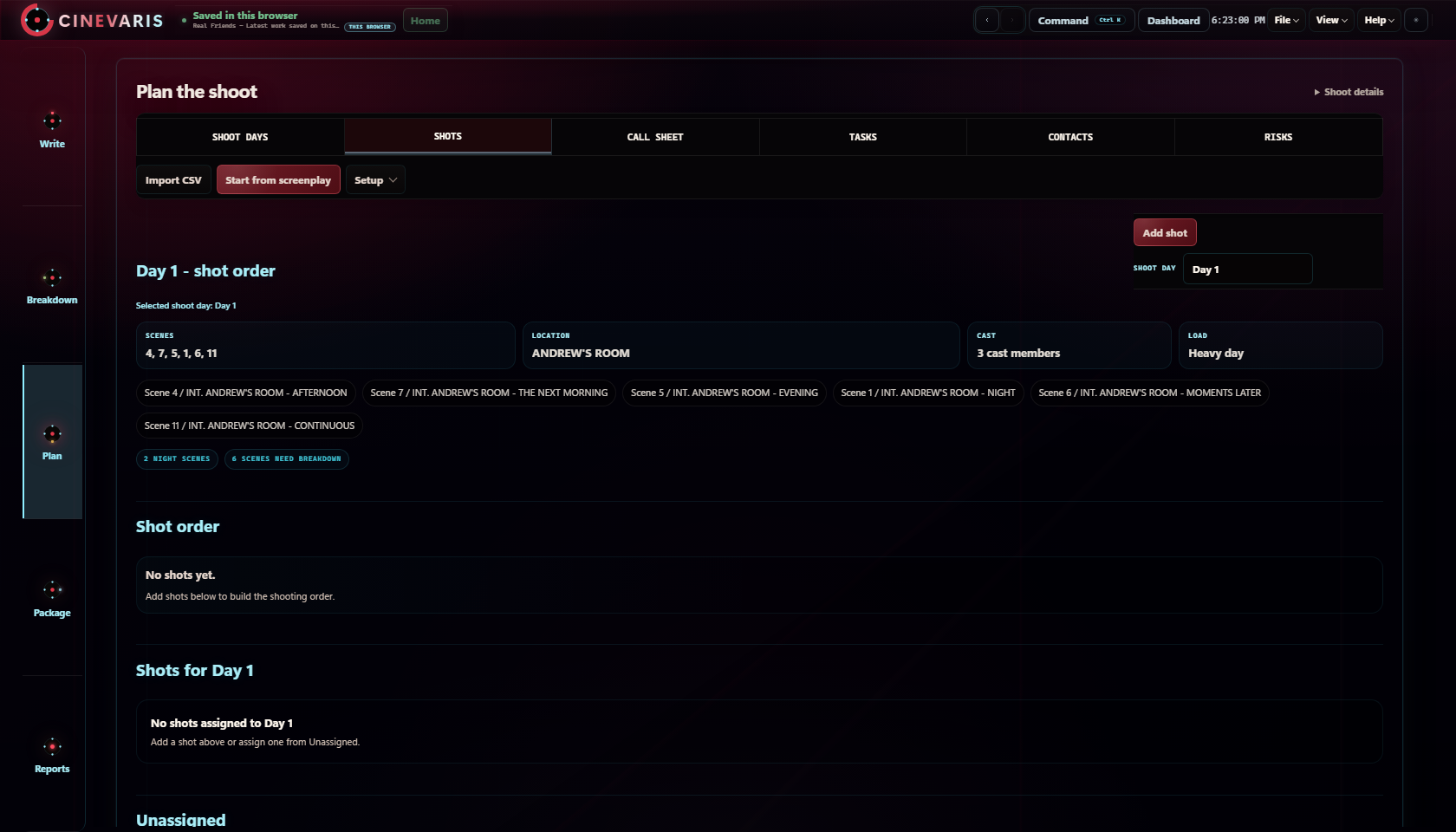
Shot list
One row per shot. Keep scene and shot IDs unchanged when you reorder the list.
- Project
- Scene(s)
- Updated
| Scene | Shot | Framing / action | Movement | Requirements | Priority | Notes |
|---|---|---|---|---|---|---|
Shots still needed
How to fill it in
Describe the image in Framing / action. Add camera movement only when needed.
Use Priority to distinguish essential coverage from optional shots. Requirements can include sound, props, lighting or equipment.
Add rows or rename columns in your own copy. Check print preview after adding long notes.
Copy gives you tab-separated rows to paste into a document or spreadsheet. The workbook includes project details and notes; CSV contains the table only. This preview is for copying or printing; it does not save entries. Blank table previews show four rows; print or download for the full sheet.
Start with the image
Using this worksheet on a shoot
Open the Excel workbook or import it into Google Sheets. Add one row per shot, keeping the scene number beside it. Leave optional columns empty and add more rows as needed.
Excel or Google Sheets?
The Excel file includes readable column widths, wrapped notes, frozen scene and shot columns, filters, and print headings. No macros or account required. In Google Sheets, choose File, Import, then Upload and select the workbook. Keep your own copy before making changes.
Use the CSV when you only need the rows and text. CSV does not preserve spreadsheet formatting. Neither download is a Cinevaris project import: these are independent worksheets you can use without the app.
What should each row contain?
Give the shot a recognizable number or name, keep its scene beside it, and describe the framing or moment you want. Movement and equipment notes are optional. A shot list records your choices; it does not need to decide every image before you arrive.
Can I change the format?
Yes. Rename or remove columns, add rows, or duplicate the worksheet for another day. Keep the scene and shot IDs recognizable to your crew. Before printing, check the preview: long notes can need taller rows, and a wide list may be easier to read across two pages.
Watch the 45-second demo to see how a scene connects to the shoot plan in Cinevaris.
Real Friends: one scene, three shots
In the opening scene of Real Friends, Andrew plays at his laptop in a dark room. Here is one way to cover that moment. The scene comes from the sample screenplay; the three shots, setup labels and priorities below are illustrative planning choices, not a confirmed production plan.
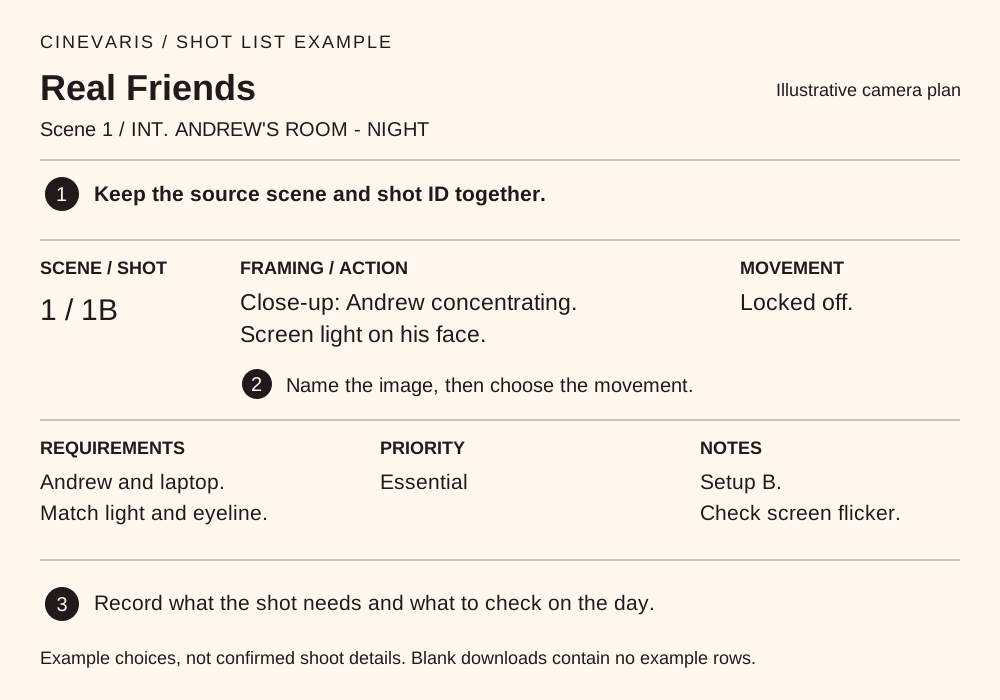
Scene 1 / INT. ANDREW'S ROOM - NIGHT
Shot 1A
- Scene
- 1 / INT. ANDREW'S ROOM - NIGHT
- Framing / action
- Wide: Andrew at the laptop. Keep the room visible.
- Movement
- Locked off.
- Requirements
- Andrew, laptop and charger. Light from the screen.
- Priority
- Essential
- Notes
- Setup A. Get the wide before moving the desk.
Shot 1B
- Scene
- 1 / INT. ANDREW'S ROOM - NIGHT
- Framing / action
- Close-up: Andrew, lit by the screen.
- Movement
- Locked off.
- Requirements
- Match light and eyeline to 1A.
- Priority
- Essential
- Notes
- Setup B. Check screen flicker before the take.
Shot 1C
- Scene
- 1 / INT. ANDREW'S ROOM - NIGHT
- Framing / action
- Insert: hand on mouse and spacebar.
- Movement
- Locked off.
- Requirements
- Mouse and keyboard. Match hand position.
- Priority
- Optional cutaway
- Notes
- Setup C. Leave time for a clean keyboard and mouse take.
Download the filled Real Friends shot list example (CSV) to use the same columns as the blank worksheet.
For your own film, use the blank template downloads at the top of this page and put each shot in one row. Keep the scene requirements in a separate scene breakdown so a proposed camera angle does not become a script fact.
Keep the list useful on the day
How do I number shots?
Choose a convention with your crew before sharing the list. Here, 1A, 1B and 1C mean three planned shots from scene 1; take numbers are recorded separately when filming. Keep those IDs stable when you reorder the work. If you add coverage later, give it a new ID instead of renumbering shots people already reference.
Is a setup the same as a shot?
A shot describes an image you want. A setup describes the camera and lighting arrangement used to make it. Several shots can share a setup; changing angle or lighting may need another. The Real Friends example uses A for the room-wide view, B for Andrew's close-up and C for the hand insert. These labels help plan changes; they are not estimates of how long filming will take.
Should I list shots in story order or shooting order?
Start in story order to check coverage. Then group work by practical setup, cast and location needs while keeping each scene and shot ID intact. Record props and other requirements in your scene breakdown. Put confirmed scene order and timing into the shooting schedule; use the call sheet to communicate the checked day's calls and logistics.
How do I handle revisions?
Put a revision date or version in the file name and on the printed copy. Note which shot IDs changed, keep the prior version, and tell the crew which copy is current. If 1C is dropped from this example, mark it omitted instead of reusing its ID. A spreadsheet edit does not update a PDF or printed list you already shared.
Keep your shots with the scene.
Plan keeps the shots you choose beside their scenes, ready to rearrange as your ideas and production change.